Downloading Data
On this page
To download response data from a survey, click the EXPORT button.
You will be directed to an export screen, which looks like this:
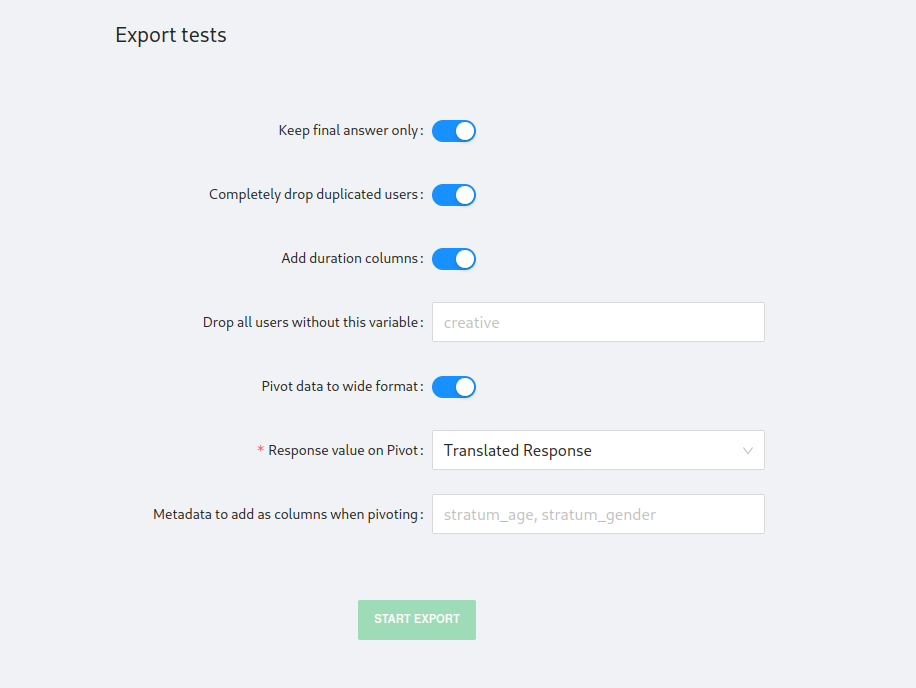
The options allow you to determine certain preprocessing steps to perform on the data before it is downloaded:
Keep final answers only
In a chatbot, respondents might answer a single question twice. This happens when the first answer they give is not valid for the question. For example, it might be a multiple-choice question but instead of using the buttons, they type out a response.
This option automatically removes all answers except the final answer for each question. It is necessary if you want the data in wide format ("pivot").
Completely drop duplicated users
This option is useful for removing anyone who took the survey multiple times, often test users or people who somehow found a way to cheat the system. This removes them entirely from the dataset. This is necessary to pivot to wide format, which creates a unique row per user / shortcode.
If you might want to keep their first or last go on a survey, you should leave this option unchecked and clean the data manually.
Add duration columns
This option calculates some useful metadata for each user and adds it as columns. It is non-destructive.
Drop all users without this variable
This option is useful for removing test users. If there is a variable that is added to all real users (i.e. "creative" in the case of recruiting via Virtual Lab), you should add that variable here to remove other users.
Pivot data to wide format
This pivots the data from long to wide format, such that each row is a user/shortcode combination and the columns are variables.
Metadata to add as columns when pivoting
Only useful when pivoting the data to wide format. This takes metadata from the user and adds it as a column. Very useful in conjunction with vlab for recruiting, for example:
- For adding metadata like "creative" to know which ad the respondent came through.
- Adding metadata associated with variables used for stratification. In that case, they take the name of the variable that you defined when setting up the study in vlab.
The metadata every respondent carries — including platform, which tells you
whether they answered on Messenger or WhatsApp — is listed under
Hidden Fields.
If your study's ads carry an encoded ref
Some Virtual Lab studies send an opaque token in the ad instead of spelling the
stratum out, so creative and gender are not in the export. Add the
metadata column vt instead, and join it against the study's
Ad Attributions
export on its ref_token column. Your stratum columns come back, named as they
always were.
You can tell which kind of study you have by looking at the export: if creative
is there, nothing needs joining.